Chromebooks don't come with Adobe Acrobat, and you can't install most desktop PDF software. You don't need to. ChromeOS has a built-in way to fill out PDFs, and browser tools work too. Here are three free options, including what to do when the form has no fields.
Step 1: Get the PDF onto your Chromebook
- From a website or Gmail: Download the PDF. It goes to the Downloads folder in the Files app.
- From Google Drive: Download the file first, or open it from the Google Drive section of the Files app.
- From Google Classroom: Download the worksheet PDF if your class allows it, then fill it in and upload the completed copy. Follow your teacher's instructions on how to turn it in.
Option 1: The Gallery app (built in)
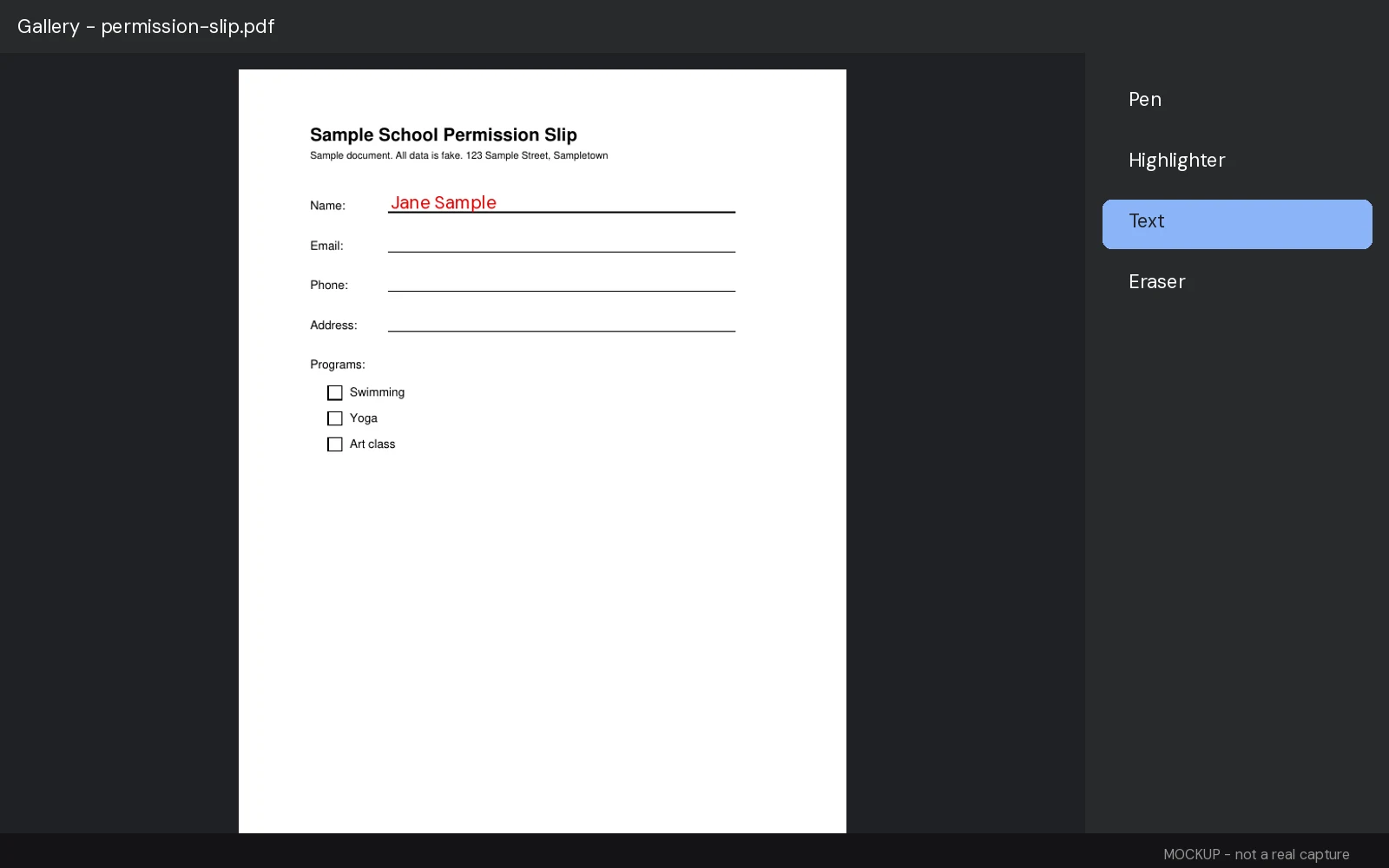
On a Chromebook, PDFs opened from the Files app open in the Gallery app by default. Gallery can fill out forms, add text, highlight, and sign.
- Select the Launcher at the bottom left and open Files.
- Find your PDF (usually in Downloads) and double-click it. It opens in Gallery.
- Fillable form: click a field and type.
- Non-fillable form: in the menu at the top of the screen, select Text, then click where you want to add text and type.
- To sign, select the signature button, draw your signature with a mouse, finger, or stylus, then select Place signature. (Google notes this is for convenience and doesn't provide signature verification.)
- Select Save at the top right. To keep the original untouched, use the arrow next to Save to save your edits as a new file.
To move or resize items you've added, use the Select tool. To edit or move text you've added, go back to the Text tool.
Option 2: Chrome's built-in PDF viewer
If you open a PDF in a Chrome tab (for example, by clicking a PDF link), Chrome's viewer can fill fillable form fields. Google's Chrome Help also lists Add text and Draw tools in the viewer.
- Open the PDF in a Chrome tab.
- Click a fillable field and type, or select Add text, choose your font and color, and click where you want the text.
- To keep your changes on a Chromebook, select Save.
If you'd rather PDFs always open in Chrome than in Gallery, right-click a PDF in Files and choose Open with, then Change default.
Option 3: TypePDF in Chrome
TypePDF runs in Chrome, so there's nothing to install from the Play Store and no account. It's useful for non-fillable forms and worksheets, where you want to click and type down the page without picking a tool each time.
- Open typepdf.pages.dev in Chrome.
- Select Choose PDF and pick the file from Files, or drag it in from the Files app.
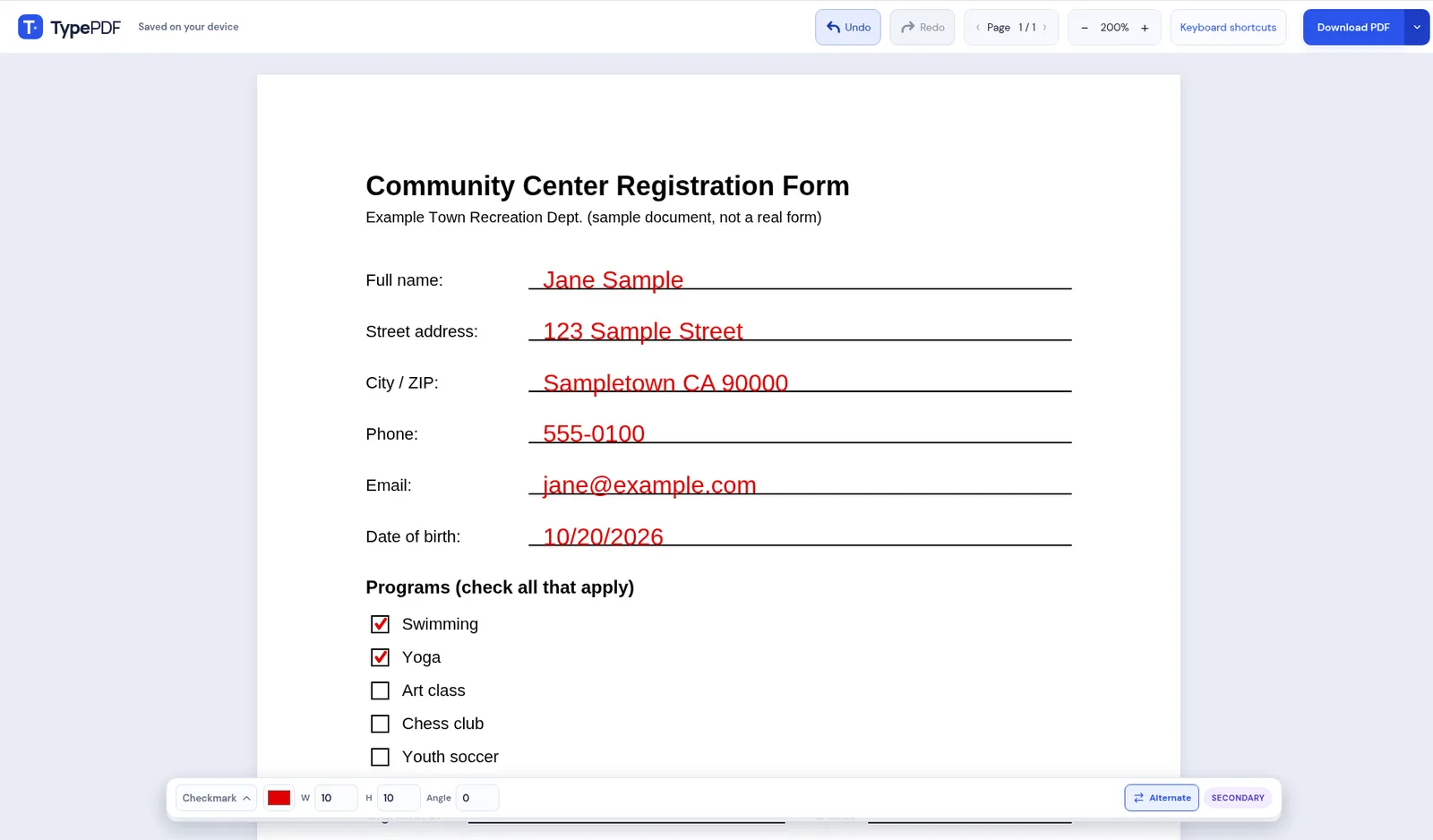
- Click where your answer goes and type. Click the next blank and keep going.
- Use your second action with Alt + click. Click Alternate in the bottom action bar, set it to, say, Checkmark, then hold Alt and click each tick box. (Chromebook keyboards have an Alt key.)
- Adjust the font, size, or color if needed. Turn on Bound in a box for longer answers that should wrap.
- Select Download PDF, choose Editable or Flattened, and save. It goes to Downloads unless you pick another folder.
Downloads have no watermark. To sign, set Default action (or Alternate) to Signature in the bottom action bar, choose Draw signature or Upload image, click your saved signature to select it, then click (or Alt + click) where it goes. Signatures are saved on this device.
Filling the same form on your phone instead? TypePDF works on iPhone and Android too: tap to type, add checkmarks and shapes, and resize items. Tap Alternate in the bottom toolbar to switch between your two actions.
Your file stays on your device. TypePDF keeps a local draft in Chrome so you can come back to it on the same Chromebook. On a shared or school Chromebook, download your file and discard the draft when you're done.
Which option should I use?
| You want to… | Use | |---|---| | Fill a form with real fields | Gallery or Chrome's PDF viewer | | Type on a form with no fields | Gallery's Text tool or TypePDF | | Fill a long worksheet quickly | TypePDF (click and type down the page) | | Draw or handwrite with a stylus | Gallery's Annotate tools | | Sign | Gallery's signature tool or TypePDF's (if a drawn signature is accepted) |
Turning it in
- Email or Gmail: Attach the saved file from Downloads.
- Google Classroom or another class portal: Upload the completed PDF and check that it's the filled-in version, not the blank one. Downloading or saving a file doesn't submit it.
- Name the file clearly, for example bio-worksheet-3-casey-nguyen.pdf.
If something doesn't work
- A site or app is blocked: School- or work-managed Chromebooks can restrict sites and apps. Ask your teacher or IT admin which PDF tool to use.
- The form shows "Please wait…" or opens blank: It's probably an XFA form, which many viewers can't display. Ask the sender for a standard PDF version. See why you can't type in a PDF.
- The PDF is password-protected: You'll need the password. TypePDF needs an unlocked copy of the file before it can open it.
FAQ
Can you fill out a PDF on a Chromebook for free?
Yes. The Gallery app is built in, and Chrome's viewer and TypePDF are free.
Can I type on a PDF that has no form fields?
Yes. Use Gallery's Text tool or TypePDF.
Do I need to install anything?
No. Gallery and Chrome come with ChromeOS, and TypePDF runs in the browser.
Where are my saved PDFs?
Usually in Files > Downloads, unless you chose another folder.