A lot of people assume that filling out a PDF means installing Adobe Acrobat. For most forms, you don't need it. Your computer or phone probably already has something that can fill in a PDF, and there are free browser tools too.
Below are the free options by device, plus the one case where Acrobat (or the free Acrobat Reader) really is the right tool.
First: is your form fillable?
Open the PDF and click a blank.
- If a cursor appears or the blank highlights, the form has fillable fields. Almost any PDF viewer can fill it: click and type.
- If nothing happens, the form is non-fillable (or it's a scan). You'll need a tool that adds text on top of the page. All of the options below can do that.
Option 1: TypePDF, in any browser
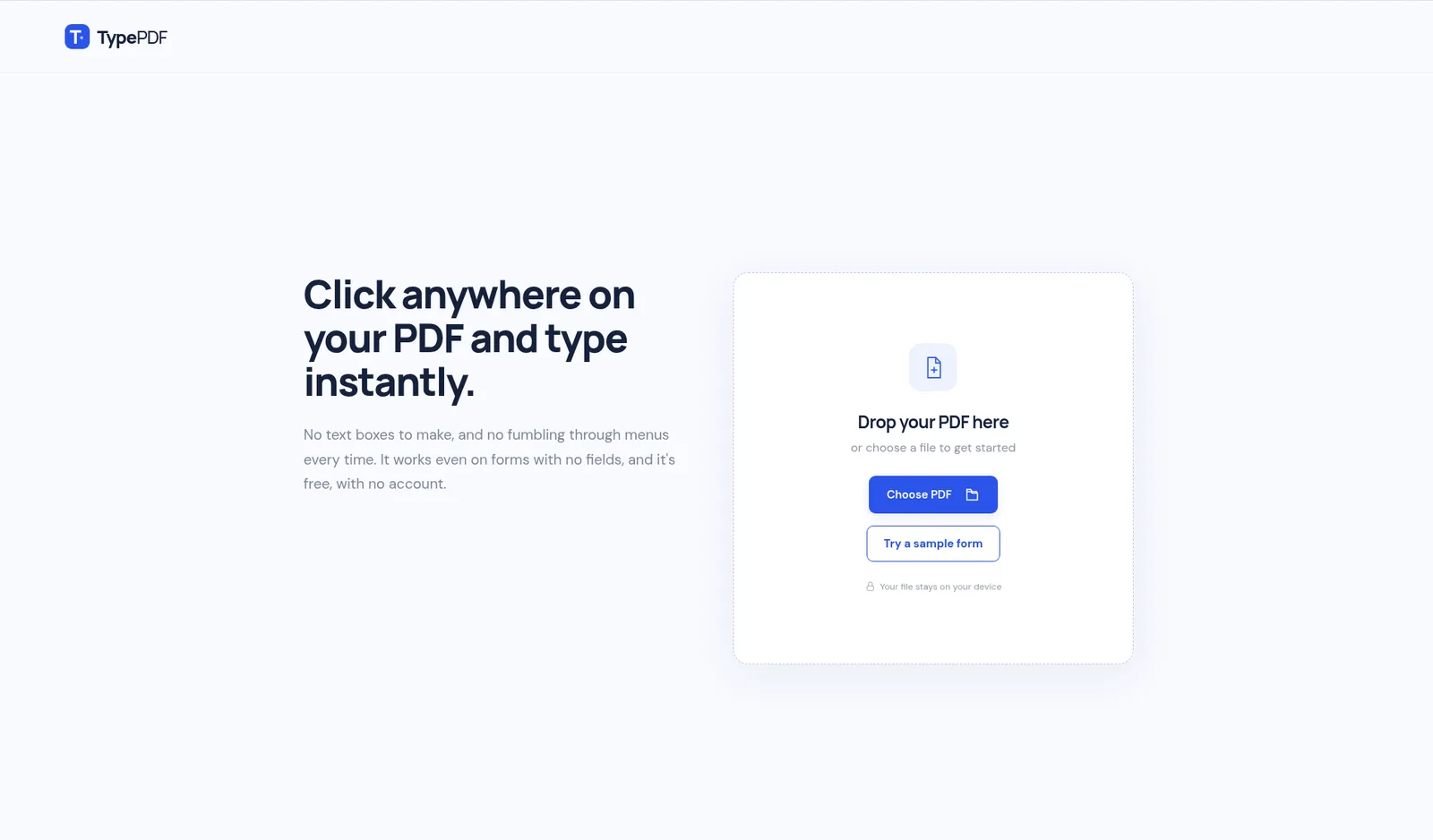
TypePDF is a free browser tool for typing on PDFs. It works on Windows, Mac, and Chromebooks because it runs in the browser. There's nothing to install and no account.
- Go to typepdf.pages.dev and select Choose PDF (or drag the file in).
- Click where your answer goes and type. A text box appears where you click.
- Click the next blank and keep going. For checkmarks, click Alternate in the bottom action bar, set it to Checkmark, and Alt + click (Option + click on Mac) each box.
- Adjust the font, size, or color if something doesn't fit.
- Select Download PDF: Editable PDF to change it later, or Flattened PDF for the final copy.
It works whether or not the form has fields, because your text goes on top of the page. To sign, set Signature as an action in the bottom action bar, then draw or upload one (signatures are saved on this device). Full steps. Downloads have no watermark, and your file stays on your device. TypePDF doesn't rewrite the PDF's existing text, and it doesn't build fillable forms.
Option 2: Microsoft Edge (Windows)
On Windows 10 and 11, Edge is the default PDF viewer, so double-clicking a PDF usually opens it there.
For fillable forms:
- Open the PDF in Edge.
- Click a field and type.
- Select Save (or Save as to keep the blank original).
For non-fillable forms:
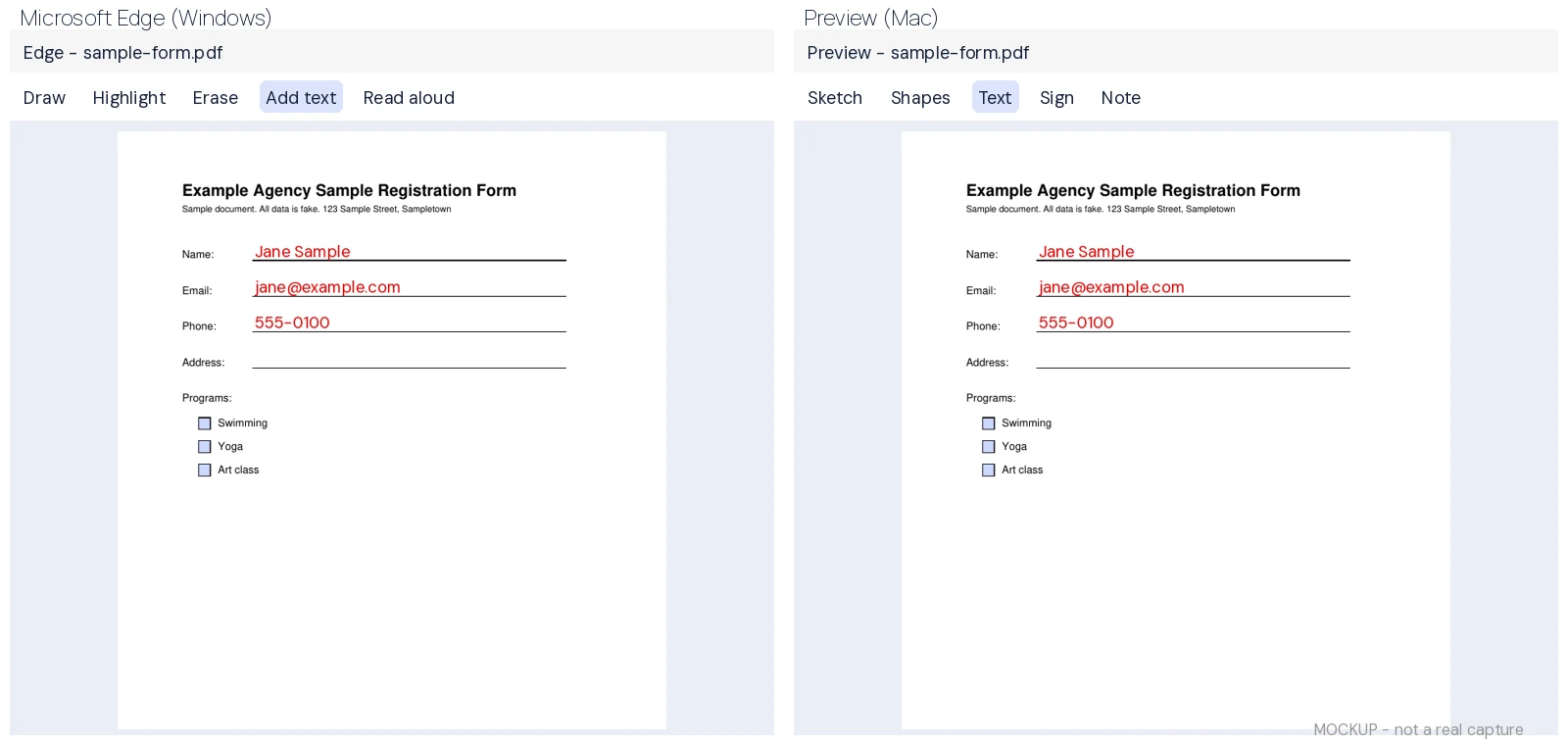
- Select Add text in the PDF toolbar.
- Click where the text should go and type.
- Select the text box to move it or change its size and color, then save.
Microsoft notes that Edge supports basic form filling but not XFA forms or forms that depend on JavaScript.
Option 3: Preview (Mac)
Preview comes with every Mac.
- Open the PDF in Preview.
- Click a field and type. For some forms, Preview shows an AutoFill Form button above the PDF that can fill in details from your contact card.
- If the form won't let you type, click the Markup button, then the Text tool. Type in the text box and drag it into place.
- Choose File > Save. To flatten your additions, Apple suggests File > Print, then Save as PDF.
Option 4: iPhone, iPad, or Android
- Open the PDF in the Files app (or the Preview app on iOS 26 and later).
- Tap the Markup / form button, then tap a blank field and type.
- To add text where there's no field, tap the add button and choose Add Text Form Box, then drag it into place.
- Tap Done, or share the completed file from the share menu.
On iPhone or Android, you can also use TypePDF in the phone's browser: tap to type, add checkmarks, shapes, and signatures, and resize items. Tap Alternate in the bottom toolbar to switch between your two actions.
More detail: how to fill out a PDF on iPhone.
Option 5: Chromebook
The built-in Gallery app opens PDFs and can fill forms and add text.
- Open the Files app and double-click the PDF. It opens in Gallery.
- Click a fillable field and type, or select Text in the top menu to add text anywhere.
- Select Save, or use the arrow next to it to save as a new file.
More detail: how to fill out a PDF on a Chromebook.
When you do want Acrobat (or the free Acrobat Reader)
Being honest: some forms work best, or only, in Adobe's software.
- XFA forms. Some government and corporate forms use an older format called XFA. In many viewers they show up blank or with a "Please wait…" message. Open them in Acrobat Reader, which is free.
- Forms with calculations or scripts. Forms that total numbers or show and hide sections automatically may not behave correctly elsewhere.
- Digitally signed or certified documents. If you need to add a certificate-based digital signature, or check one, Acrobat Reader is the standard tool.
You don't need paid Acrobat Pro to fill any of these. Acrobat Reader is free. Its Fill & Sign tool (All tools > Fill & Sign in recent versions) can add text, checkmarks, and signatures to non-fillable forms too. You'd only need paid Acrobat to do things like edit existing text, run OCR, or build fillable forms.
Which option should I use?
| Situation | Good free choice | |---|---| | Quick form, any computer, no install | TypePDF in your browser | | Windows PC, fillable form | Microsoft Edge | | Mac | Preview | | iPhone | Files / Preview Markup | | Chromebook | Gallery app | | XFA or scripted form | Adobe Acrobat Reader (free) |
Before you send it
- Open the saved file once and check every page.
- Make sure you're attaching the completed copy, not the blank original.
- If the form needs a signature, follow the sender's instructions. A typed name isn't always accepted.
FAQ
Is there a free way to fill out a PDF without Adobe?
Yes. Edge (Windows), Preview (Mac), the Files app (iPhone), the Gallery app (Chromebook), and browser tools like TypePDF are all free.
Can I fill out a non-fillable PDF without Acrobat?
Yes. Use a tool that adds text on top of the page: TypePDF, Edge's Add text, Preview's Text tool, or the Gallery app's Text tool.
Will the recipient be able to open my filled PDF?
Yes, it's a PDF file. If you want your additions fixed onto the page, send a flattened copy.
Will my PDF have a watermark?
Not from TypePDF. Downloads have no watermark.
Do I need an Adobe account?
Not for the non-Adobe options above. TypePDF needs no account at all.