Someone sends you a PDF form and you're away from a computer. You can fill it out right on your iPhone, without printing anything and usually without installing an app. Here are the built-in way, a browser way, and what to do when the form has no fields to tap.
Before you start: save the PDF to Files
Most iPhone fill-out methods work best on a saved copy.
- From Mail: Open the email, touch and hold the PDF attachment, and choose Save to Files.
- From Safari: Open the PDF link and use the share or download option to save it. Safari downloads go to the Downloads folder in the Files app by default.
- From Messages or another app: Use the share button and choose Save to Files.
Keep the original as-is, so you still have a blank copy if something goes wrong.
Method 1: The built-in Files app or Preview
On iOS 26 and later, iPhone also has a Preview app for PDFs. Apple's steps for filling forms are similar whether you start in Files or Preview.
If the form has fillable fields
- Open the PDF in Files (or Preview). If you're prompted to open it in Files, tap Save.
- Tap the Markup / form-filling button.
- Tap a blank field and type with the onscreen keyboard. Tap the next field and continue.
- If iPhone offers to fill several related fields at once (using your My Card in Contacts), check the suggested details, change anything that's wrong, then tap Fill.
- When you're done, use the share menu to send it, or Export / Print. Then tap Done to save and close.
If the form doesn't have fields
- With the PDF open, tap the add button and choose Add Text Form Box.
- Drag the box to the blank line and type.
- Use the formatting tools to change the font and color.
- Repeat for each blank.
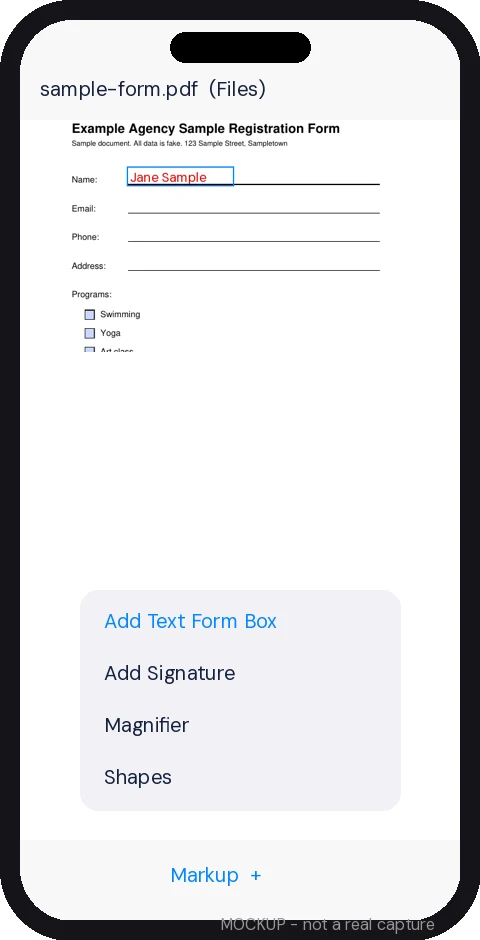
To sign, use Add Signature in the same menu, sign with your finger, tap Done, and drag the signature into place. A drawn or typed signature isn't always accepted, so check what the sender wants.
Method 2: TypePDF in Safari
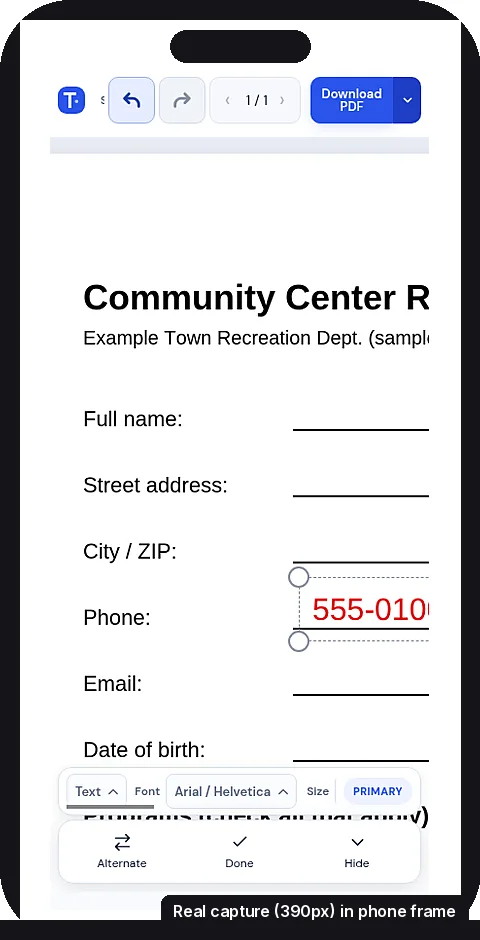
TypePDF runs in Safari with nothing to install and no account. It's handy when the form has no fields and you want to place answers exactly where they go. It works the same way on Android phones.
- Open typepdf.pages.dev in Safari.
- Tap Choose PDF and pick the file from Files.
- Tap where your answer goes and type. Tap the next blank and keep going.
- Add checkmarks and shapes where you need them, and resize any text box that doesn't fit. Set your two actions in the bottom toolbar (Default action and Alternate). There's no Alt key on a phone, so tap Alternate to switch between them, then tap the page.
- Pinch to zoom on small lines so your text lands in the right place.
- Tap Download PDF, name the file, choose Editable or Flattened, and save it. There's no watermark.
To sign in TypePDF:
- Open your PDF.
- In the bottom action bar, set Default action to Signature. Or tap Alternate and set Signature on that second bar.
- In the Signatures dialog, choose Draw signature (draw with your finger, then Save) or Upload image (PNG, JPEG, or WebP).
- Tap your saved signature to select it.
- Tap where it goes. If you set Signature on the Alternate bar, tap Alternate first to switch to it.
Signatures are saved on this device, so you can reuse one next time.
Your file stays on your device. TypePDF also keeps a local draft in Safari so you can come back to it on the same iPhone, but download a copy you want to keep.
Method 3: Acrobat Reader app
If you already have Adobe's free Acrobat Reader app:
- Open the PDF in Acrobat Reader.
- Tap Fill & Sign.
- Tap Text box (or tap a field directly if the form is fillable), then tap the blank and type.
- Drag the box to line it up, and save.
Tips for filling PDFs on a small screen
- Turn your phone sideways to see more of the line you're filling.
- Zoom in before you place text so each answer lands in the right spot, then zoom out to check the whole page.
- Keep the text size the same across all answers so the form looks tidy.
- Watch the keyboard. It covers the lower half of the screen, so scroll a little to see the field you're typing in.
- Check every page before you send it. Multi-page forms are easy to half-finish on a phone.
Sending it back
- Email: Start a reply in Mail, then add the completed file from Files as an attachment.
- Upload to a website: Use the site's upload button and pick the completed file from Files.
- Name it clearly, for example intake-form-morgan-patel-completed.pdf, so you don't send the blank one.
FAQ
Can I fill out a PDF on iPhone without an app?
Yes. The Files app (and Preview on iOS 26 and later) are built in, and TypePDF runs in Safari.
Why can't I tap into the form fields?
The form may have no fields, or you may be in a read-only preview. Save it to Files and use Add Text Form Box or TypePDF. See why you can't type in a PDF.
Where did my filled PDF go?
Files edits are saved to the file you opened. Downloads from Safari usually land in Files > Downloads.
Can I sign a PDF on iPhone?
Yes. Use Add Signature in Files or Preview, or TypePDF (set Signature in the bottom action bar, then draw or upload one). A drawn signature isn't always accepted, so check with the sender.
Can I fill out a scanned PDF on iPhone?
Yes. Add text boxes on top of the scan. TypePDF also works, but it doesn't recognize or edit the scanned words.