Sometimes you just need to type a few answers onto a PDF, and the tools you find want something first: create an account, sign in with Google, upload your file to their servers, or "start a free trial." For a tax form, a medical intake sheet, or a lease, that's a lot to hand over just to fill in some blanks.
This guide explains what "no upload" and "no login" actually mean, how to check a tool before you use it, and how to fill a PDF in TypePDF, where there's no account and your file stays on your device.
What "no upload" means
Most online PDF tools work by sending your file to a server, editing it there, and sending it back. That's not automatically bad, but it means a copy of your document leaves your computer, and you're trusting that service's storage and deletion policies.
A "no upload" tool does the work in your browser, on your device. The page loads like any website, but your PDF is opened and edited locally rather than being sent off for processing.
Things to keep in mind:
- The website itself still loads from the internet. Pages, fonts, and similar resources come from servers, just like any site. "No upload" is about your document, not about the site never connecting to anything.
- Read the tool's privacy policy. It should say plainly where your PDF is processed. TypePDF's Privacy Policy explains how the site handles this.
What "no login" means
No login means you can open the tool, do the work, and download the result without creating an account or signing in. Watch for tools that let you edit for free but then ask you to sign in, pay, or accept a watermark at the download step. A true no-login tool lets you download your finished file without any of that.
How to check any tool in a minute
Before you open a sensitive document in an unfamiliar PDF site:
- Look for a clear statement about where files are processed: on your device, or uploaded.
- Skim the privacy policy for what happens to your file and how long anything is kept.
- Check the download step with a harmless test file. Did it ask you to sign in, pay, or add a watermark?
- Look for account prompts like "Sign in to continue" or "Create a free account."
- Prefer tools that tell you their limits. A tool that says what it doesn't do is easier to trust.
Fill out a PDF in TypePDF: no account, file stays on your device
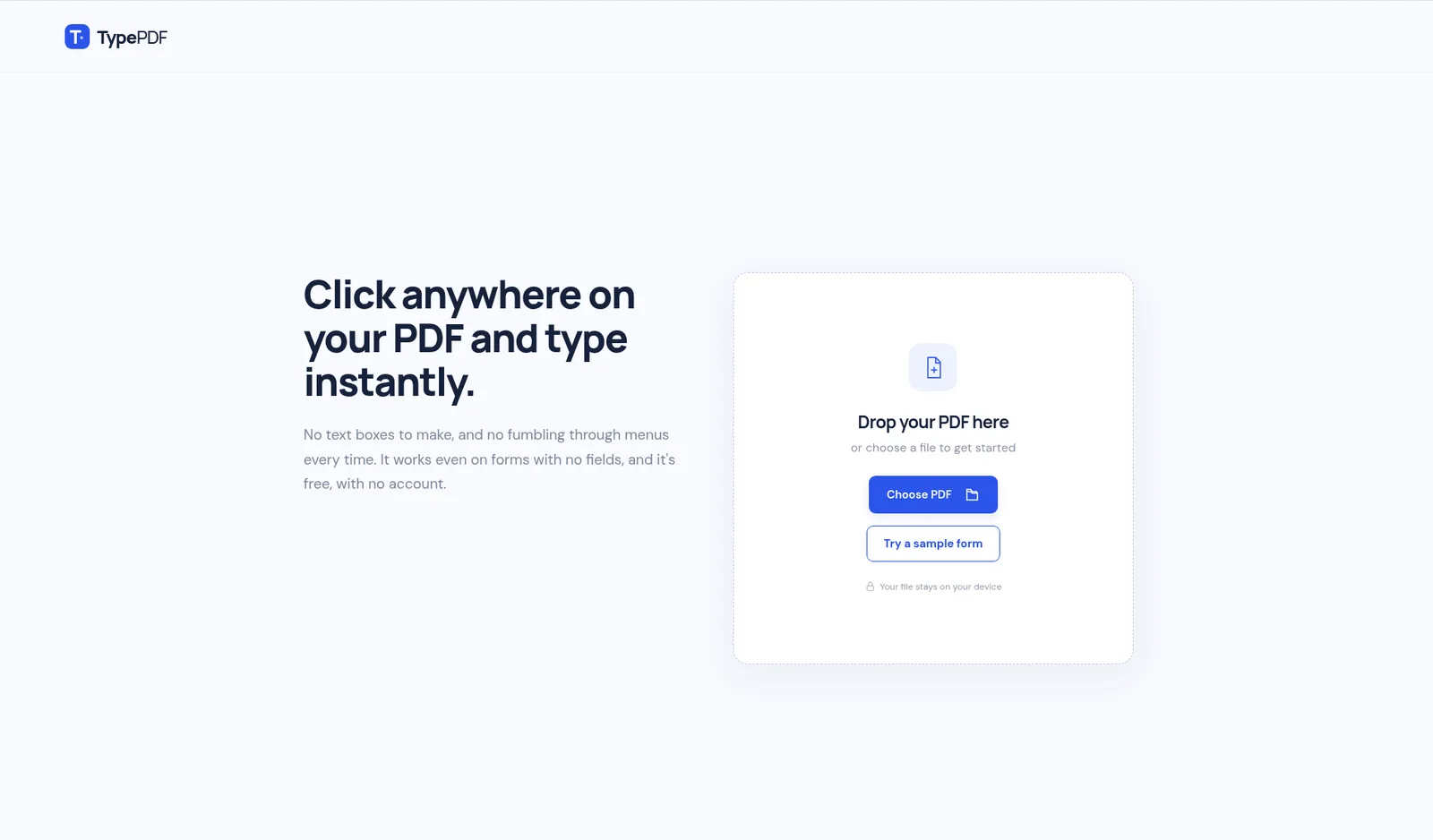
- Go to typepdf.pages.dev. There's no sign-up screen.
- Select Choose PDF, or drag the file onto the page.
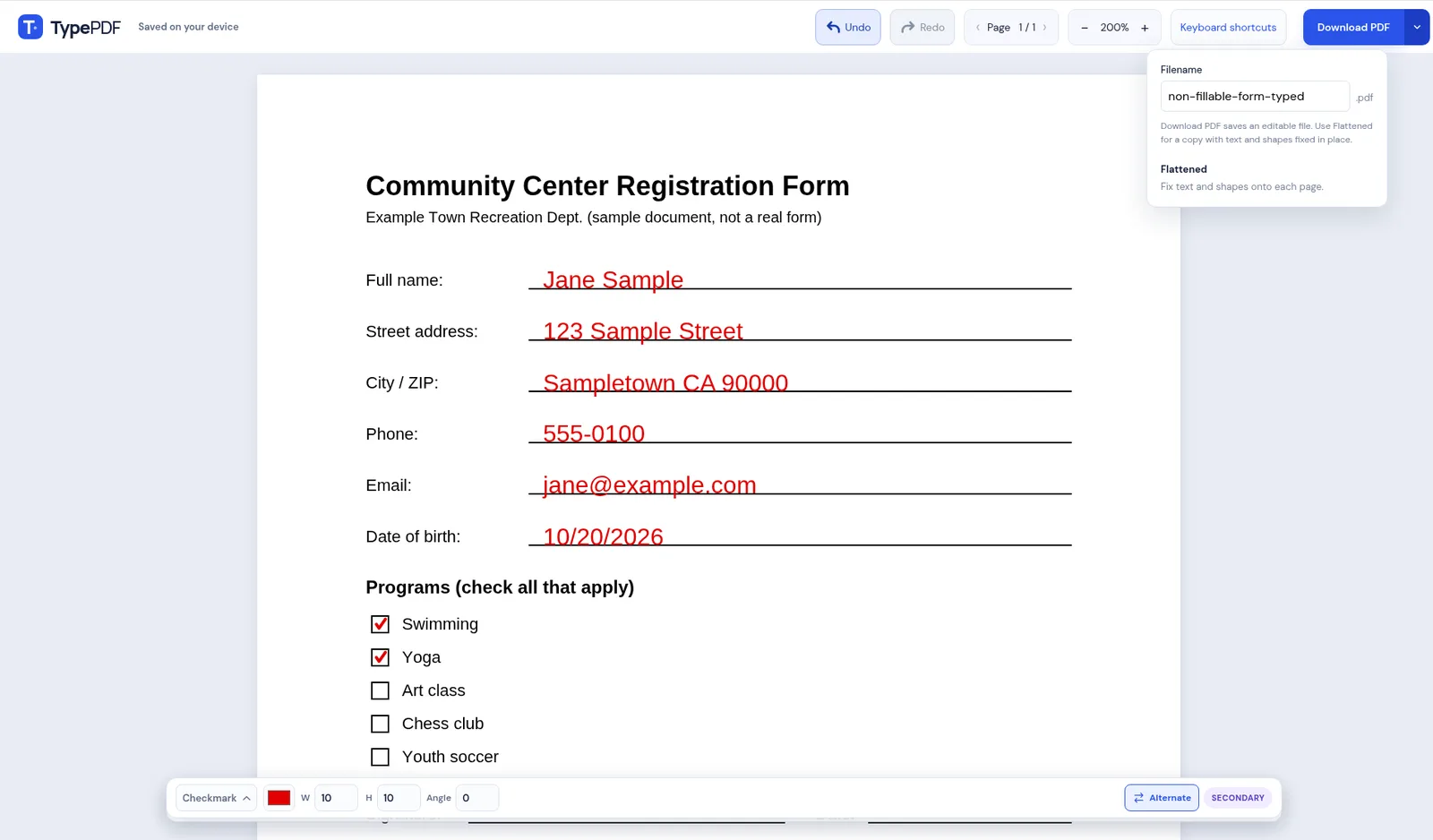
- Click where your text should go and type. Click the next spot and keep going.
- For a checkmark or shape, click Alternate in the bottom action bar, set it, and Alt + click (Option + click on Mac). On a phone, tap Alternate to switch actions.
- Adjust font, size, and color, and move or resize text boxes as needed.
- Select Download PDF, name the file, and choose Editable or Flattened. There's no sign-in step and no watermark.
The PDF is processed on your device, and your file stays on your device.
About the local draft
TypePDF saves a draft in your browser so you can pick up where you left off on the same browser and device. That's handy, but on a shared or public computer you should:
- download your finished file, then
- select Discard in the saved-work notice on the start screen, or clear the site's data in your browser settings.
Opening another PDF also replaces the current draft. The draft isn't a backup, so always download a copy you want to keep.
Being honest about "editor"
People search for "PDF editor," but many only need to add things: answers, a date, a checkmark, a note. That's what TypePDF does. It:
- adds text, checkmarks, and shapes on top of the page
- lets you change font, size, and color, move and resize items, rotate pages, and undo
- adds a signature: set Signature in the bottom action bar, then draw one or upload a PNG, JPEG, or WebP image (signatures are saved on this device)
- downloads an editable or flattened PDF
It does not rewrite the PDF's existing text, build fillable forms, or securely redact information. Covering text with a shape hides it visually but doesn't remove it. If you need those features, you need a full PDF editor.
Other options that don't need an upload or an account
Apps already on your device open files locally:
- Windows: Microsoft Edge opens PDFs and has an Add text tool for non-fillable forms.
- Mac: Preview can fill form fields and add text with the Markup Text tool.
- iPhone: the Files app and Preview can fill forms and add text form boxes.
- Chromebook: the Gallery app fills forms and adds text.
See how to fill out a PDF without Acrobat for step-by-step instructions for each.
FAQ
Do I need an account to use TypePDF?
No. Open the site, choose your PDF, and start typing.
Does TypePDF upload my PDF?
The PDF is processed on your device, and your file stays on your device. See the Privacy Policy for details on how the website itself is delivered.
Is there a watermark or a sign-in step at download?
No. You don't sign in to download, and there's no watermark. Check your downloaded file before you send it.
Can I use it for confidential documents?
Your file stays on your device. Still, on a shared computer, download your file and discard the local draft when you're done.
Can I edit the existing text in my PDF?
No. TypePDF adds content over the page. It doesn't rewrite what's already there.